

Home » Mobile
Popular Posts
-
 WhatsApp is rolling out the voice calling feature to all Android users. WhatsApp, the most popular messaging app in the world with over 70...
-
200 million users on Apple iOS 7devices updated introduced last week. And very likely features in iOS 7 this video
-
 The iSight is an amazing still camera. And it’s every bit as amazing when it comes to video. Capture moments in stunning 1080p HD. Take st...
-
 Give iPhone a home on your nightstand Rubber bar functions as a slap-happy snooze button Built-in cord catch keeps the cable (not inclu...
-
 We must be getting close to an iPad refresh, because the leaks are becoming more and more prevalent. Hot on the heels of the video that su...
500mAh Lighter Design Emergency Solar Charger with Phone Chain for iPhone 4/4S, 3G/3GS

Now: USD 4.24 Buy It Now
Main Features:
Specifications:
Package Contents:
- 1 x Emergency Solar Charger
Now: USD 4.24 Buy It Now
Back up your iPhone and iPad

To make a wireless backup directly from your device, you’ll need an iCloud account. Once you’re logged in to iCloud, make sure your device is connected to a Wi-Fi network—you can’t make a backup over 3G. After you’ve done so, just tap Settings > iCloud > Storage & Backup, turn on the iCloud Backup toggle, and press Back Up Now.
This creates a manual backup of your device at any time. In addition, when iCloud Backup is turned on, your device automatically backs up any time it is plugged in, locked, and connected to Wi-Fi.
If you’d like to have an local backup on your computer, you can also back up your device through iTunes. Just plug your phone into your computer (or use the Wi-Fi Sync option) and open iTunes.
Once iTunes is open, click the Devices menu, select your iPhone, and scroll down in the summary section to Backups. There, under Manually Back Up and Restore, click Back Up Now.
This is also where you can change your backups so that you solely back up through iTunes, but if you have an iCloud account, we recommend you have backups in both places.
I’m associate editor Serenity Caldwell, and thanks for watching.
iPhone 5c Unboxing
iPhone 5c Unboxing

Apple iPhone 6 Concept Video
Started rumors that the iPhone 6 will be released next year. Here are the iPhone 6 Concept ;


Apple iPhone 5S Camera Video

When you watch a video in slow motion, it feels infinitely more exciting. Whether it’s a snowboarder landing a jump or a dog chasing its tail, slow-motion video cranks up the drama and, sometimes, the humor. The slo-mo feature on iPhone 5s lets you capture video at 120 frames per second in 720p. When you’re done, select the portion you want to slow down, and that clip plays back at quarter speed. You can change which part is in slow motion anytime, and even share it with your friends.
The pinch-to-zoom technique you use when taking pictures now works when recording video. iOS 7 on iPhone 5s gives you the ability to zoom in on your subject up to 3x as you’re recording. So you can put the emphasis right where you want it.
Top 20 Hidden iOS 7 Features That You Likely Don’t Know About

All set? Let’s begin.
1. Use Safari To See Tweets With Links / URLs
Want to quickly see all the tweets in your timeline with URLs / links in them? Simply launch Safari, press the bookmarks button – the one that looks like an open book, obviously – then press the @ button on top. Boom! All the tweets with links in one place. You should be signed in to your Twitter account in Settings > Twitter in order for this feature to work.
2. Turn Parallax On / Off
Don’t like the new iOS 7 Parallax effect on wallpapers – or 3D wallpapers as we would like to call them? Fear that it might be draining your battery? Simply turn it off. Go to Settings > General > Accessibility > Reduce Motion and turn it on or off according to your liking.
3. Enable Motion Sensing Controls
iOS 7 lets you launch Siri or press the Home button by simply tilting your head, or pull down Notification Center by tilting your head to the left. Sounds epic? Indeed it does. Head over to Settings > General > Accessibility > Switch Control to turn it on. Now go to Switches and set up switches to perform different actions.
4. Enable / Disable Bold Text or Change Font Size System-wide
Don’t like iOS 7’s new thin font size? Bold it up! Head over to Settings > General > Accessibility > and enable Bold Text. Changing the system wide font size is as easy as pie, too. Head over to Settings > General > Text Size and adjust the font size to your liking.
5. See Your Frequently Visited Places On A Map
This feature lets you see on a map which places you have been visiting. Might be concerning for some, but here’s how you can find out: go to Settings > Privacy > Location Services > System Services > Frequent Locations. I would suggest keeping this one off for obvious reasons.
6. Block Callers and Unwanted Messages
This feature is a gem to use. Open the contact which might be bugging you, scroll all the way down in contact details and tap Block this Caller. That’s it. The contact will never be able to bug you again. If you want to manage blocked messages, then head over to Settings > Messages > Blocked. This also applies to FaceTime and iMessages.
7. Show Timestamps In Messages App
Open a conversation thread, and swipe from right to left while holding your finger down on the screen. You will see the timestamps of all your sent and received messages.
8. Use Siri To Enable / Disable System Toggles
Siri shed its beta tag along with the release of iOS 7, and can do a lot more than just telling you the weather, calling a certain contact, settings reminders etc. Press and hold the Home button to launch Siri and say – for example – ‘Turn Wi-Fi on’ and Siri will turn on Wi-Fi for you. Same works for Bluetooth and other system toggles.
9. Use Swipe Gesture To Go Back One Screen
In iOS 7, you can simply use swipe gestures to go back a screen, rather than pressing that pesky back button on the display. In Messages for instance, if you’re in a thread, simply swipe from the left corner towards the right and you’ll be taken to the main Messages window. This works pretty much throughout iOS 7, like Mail, Settings, Contacts etc.
10. Take Square Photos Using Camera App
Regular photos aren’t cutting the mustard for you? The native Camera app in iOS 7 now lets you take square photos. Launch the Camera app, and swipe to the right to take photos in square proportions. You can use the same swiping gesture to go through Panorama and Video modes.
11. Update App Content In The Background
Use an app frequently but don’t like to refresh every time you launch it? iOS 7 has you covered. Go to Settings > General > Background App Refresh and enable all the apps you wish to update themselves in the background. Note: this feature really takes a toll on battery, therefore select the apps which are most relevant for you to be updated.
12. Use Panorama Photos As Lock Screen Wallpaper For Added Effect
Use a panorama photo as your lock screen wallpaper which you’ve taken with your device’s camera for a cool spinning effect. Enable Parallax mode for this one which we’ve outlined in feature # 2.
13. Bubble Level In Compass App
The native Compass app in iOS 7 is more than a direction telling companion. Swipe to the right after calibrating the compass to reveal a new screen that lets you access and use a bubble level.
14. Use Siri For Updates From Anedia
Yes, you read that right. Siri can show you the latest updates from our Anedia feed on Twitter. Launch Siri by holding down the Home button and say ‘What is Anedia saying’. And voila, all our latest updates in one place. Neat right? Give this one a shot, it’s our personal favorite.
15. Enable / Disable Control Center In Lock Screen Or Apps
Don’t want anyone else, or yourself mistakenly launching Control Center on the lock screen or running apps? Why not disable it? Go to Settings > Control Center and enable or disable access to Control Center on the lock screen or apps.
16. Turn Automatic App Updates On / Off
iOS 7 updates your apps in the background, saving you time and the cumbersome process of launching the App Store and performing manual updates. You can turn automatic app updates on / off by heading over to Settings > iTunes & App Store and turn on / off Updates in the Automatic Downloads section.
17. Unlimited Apps In Folders
Folders in iOS 7 are like a black hole. You keep on throwing apps inside them and there’s no limit on how many apps you can have inside one.
18. Enable / Disable Advertising Tracking
Don’t want your iOS device to be tracked for specific ads? Head over to Settings > Privacy > Advertising and disable Limit Ad Tracking. We’ve heard reports occasionally that this feature also saves battery life by a fraction.
19. View All Received Media In Messages App In One Place
Received a bunch of photos or videos from someone in Messages app but lost it in a mile long thread? iOS 7 now lets you view your media all in one place. Simply tap open the last received photo / video, and press the list view (the one with three dashes, as shown in the screenshot) button.
20. Dynamic Wallpapers
iOS 7 supports dynamic wallpapers, in short: animated wallpapers. Go to Settings > Wallpapers & Brightness > Choose Wallpaper > Dynamic, and there you’ll see a bunch of animated wallpapers which respond to your device’s movement.
iPhone 5S Touch Id Hacked.

In a shocking outcome the chaos computer club shocked the world with claims of the iPhone 5s touch id not being as safe as they seem. The tech giant Apple recently came up with a fingerprint authentication in its new iPhone 5S which was supposed to completely secure access to your device. Well we know that nothing is secure and perfect in today’s world.
Recently the bio-metrics team of the chaos computer club stated that a simple glue model of someone’s fingerprint could easily bypass the apples new touch secure id. This means that the bio-metric fingerprint scanner from apple is not so defensive after all. People can easily pick up our fingerprints from all over the phone screen and with a little bit of dedication they will be able to access your brand new iphone 5s.
The club reportedly took a picture of the fingerprint on the screen with a 2400 dpi resolution camera and then cleansed it up on a computer and printed it using a heavy toner onto a transparent sheet. Then they smeared latex and wood glue on the sheet and let it dry. This created a replica of the fingerprint similar to a real one.
They then tried to open the screen lock and were successful in doing so. Thus using the same old lock screen might seem better at this point of time.
Top 28 Battery Life Saving Tips for iOS 7 [Guide]

Location Services
Location Services in iOS 7, or any iteration of iOS for that matter, is a real battery hog. If your main apps don’t make use of this feature, you can turn it off. Head over to Settings > General > Privacy and turn off Location Services altogether, or set individual setting for each app.
Also, under the Location Services pane, scroll down to System Services and turn off Diagnostics & Usage, Location-Based iAds, Popular Near Me, Setting Time Zone, Traffic and Frequent Locations.
Disable Siri
Siri is a core part of iOS and runs in the background all the time. If you’re not using it then it’s best to turn it off. Head over to Settings > General > Siri and turn it off.
Turn off Bluetooth Or Wi-Fi
Disable Bluetooth when not in use, it will save you loads of precious juice. You can disable it by heading over to Settings > Bluetooth.
Wi-Fi is a blessing, but at times we forget to turn it off when we’re not near a Wi-Fi hotspot. Turn it off by heading over to Settings > Wi-Fi when not in use.
Use 2G Whenever Possible
Using iPhone on 3G or 4G LTE network drains battery like anything. Those mind blowing cellular speeds are great for pretty much everything that requires cellular data, but idle usage gives a big hit to battery. Head over to Settings > Cellular and set Enable 3G/4G to off.
Disable Some Settings In Notification Center
Every time you pull down that shiny new Notification Center in iOS 7, it uses cellular data to keep you up to date on latest weather, stocks and your daily summary. Head over to Settings > Notification Center and switch off the settings which seem irrelevant to you.
Turn Off Background App Refresh
This is a killer new feature in iOS 7, but devastates battery life on the device like anything. Navigate to Settings > General > Background App Refresh and disable it. You also have the option to update your favorite apps’ content in the background individually, therefore disable or enable the feature for each app wisely. It’s good practice to keep as minimum apps as possible on auto refresh.
Turn Off Parallax
Parallax effect on the home screen or lock screen constantly keeps the motion sensors up and running on the device, which ultimately results in battery drainage. Head over to Settings > General > Accessibility > Reduce Motion and set it to on.
Set Automatic Date / Time Update To Off
This uses the device’s location services from time to time to adjust the device’s date and time. To disable it, head over to Settings > General > Data & Time and turn off Set Automatically.
Disable Push Mail / Push Notifications
Push notifications are great and all, but they take toll on battery life. Head over to Settings > Notification Center and remove all unnecessary apps which send you push notifications. Only leave those in Notification Center which are most important to you.
Push mail is also a big culprit here, if you don’t have enough incoming mails then it’s best to turn push notifications for email(s) to off. Head on over to Settings > Mail, Contacts, Calendars > Fetch New Data and turn Push off. You can set it to manually retrieve mail, or set to check mail at fixed intervals. The larger the interval, the better the battery life you’ll get out from your device.
Turn Off iCloud Features
iCloud features gives the luxury of keeping things in sync across multiple devices, but comes at a small cost of power. Head over to Settings > iCloud and turn off the features which you don’t use.
Make Use Of Auto-Brightness
Instead of setting the screen brightness to high manually, set the device’s auto-brightness to on. You can do so by heading over to Settings > Wallpapers & Brightness and turn Auto-Brightness to on. Note: fifth-generation iPod touch does not come with the auto-brightness feature, therefore you have to adjust brightness manually. It’s best to do so from Control Center, which can be accessed by swiping up from the bottom of the device’s display.
Kill Background Apps
iOS is really smart on its own when it comes to adjusting power, but there are some apps that when running in the background execute processes that use up cellular data to take up a fair share of battery juice. Double tap the Home button to bring up the multitasking menu and close all the apps which you don’t use.
Disable Advertising Tracking
Head over to Settings > Privacy > Advertising and turn on Limit Ad Tracking.
Turn Off Diagnostics & Usage Reporting
Turn this feature off, just do it. Head over to Settings > General > About > Diagnostics & Usage and select Don’t Send.
Make Use Of Control Center As Much As Possible
Control Center gives you a quick glance of the radios – or settings – that are enabled or disabled on the device. Simply swipe up from the bottom of the display from anywhere in iOS 7 to access Control Center and disable all the radios or features which are not in use at the given time.
Disable Device Orientation Settings
Constant use of the device’s accelerometer can put a small strain on battery life. Bring up Control Center, and turn on Orientation Lock, which is the icon on the far right in the top row, right next to Do Not Disturb.
Disable Recurring Message Notifications
By default, iOS will show you the same notification from the Messages app twice if you don’t respond to it the first time. Double notification alerts mean that your device’s display will turn on multiple times, which ultimately leads to battery drain. Head over to Settings > Notification Center, find Messages in the INCLUDE section, tap on Messages, scroll down and tap on Repeat Alerts and set it to Never.
Disable iMessage / FaceTime
If you don’t use iMessage or FaceTime at all, then it’s best to turn it off. Head on over to Settings > Messages and turn off iMessage, or Settings > FaceTime and disable FaceTime.
Make Good Use Of ‘Do Not Disturb’
Do Not Disturb in iOS disables all sorts of incoming notifications, and spares a precious amount of power to get you through the day. Make use of it when you’re at work, in a meeting, during sleep, gym etc.
Do Not Disturb can be accessed via Settings > Do Not Disturb, or via Control Center.
Turn Off Device Vibration
Keep your device’s vibration alerts off whenever possible, unless you’re in a noisy environment. Head over to Settings > Sounds and disable Vibrate on Ring and Vibrate on Silent both.
Turn Off Keyboard And Device Lock / Unlock Sounds
The monumental iOS keyboard click and device lock / unlock sounds drains the battery continuously. Turn them off by heading over to Settings > Sounds and turn off Lock Sounds and Keyboard Clicks located at the very bottom of the page.
Turn Off Automatic App Store Updates / Download Of Songs
Automatic App Store updates ship as part of iOS 7, and is a really handy feature, if you ignore the part that it constantly strains your device’s battery and cellular or Wi-Fi connection to actually go for the update itself. Disable this feature by heading over to Settings > iTunes & App Store and disable Music, Apps, Books and Updates under the AUTOMATIC DOWNLOADS section.
Also turn off Use Cellular Data to prevent the App Store and iTunes Store from doing its magic while you’re on a cellular network.
Disable AirDrop When Not In Use
Keeping things disabled when not in use is good practice, and the same goes for AirDrop. Swipe up to bring Control Center, tap on AirDrop and then tap Off.
Turn Off Music EQ Settings
EQ settings in the Music section of the Settings app is great for the ears if you’re into music, but bad for battery life for extended periods of usage. Turn it off.
Turn Off iTunes Match
Head over to Settings > iTunes & App Store and disable iTunes Match if you don’t make use of the service.
Disable Cellular Data Connection In Bad Coverage Areas
It’s always a good idea to disable the device’s cellular data connection in bad coverage areas where the cellular network is shady, especially inside skyscrapers or shopping malls. In fact, this tip will save you a ton of battery life if executed wisely and at the right time. Go to Settings > Cellular and disable Cellular Data. Keep in mind: when cellular data is disabled, you won’t have access to the Internet, which means you won’t get push notifications, emails, iMessages, FaceTime calls etc.
Use Airplane Mode Wisely
Proper usage of Airplane Mode will spare you up to a few hours of battery life, provided that you enable it or disable it at the right time. In a plane? Enable it. At home? Disable it. Bad coverage area? Enable it.
Turn Your Device Off If All Else Fails
End of the line? Seeing that 5% battery left mark on the top right hand corner? Well, if you’re in no emergency then it’s best you turn the device off until you find a power outlet.
Before selling to Microsoft, Nokia had Lumia Android phones in the works

As it turns out, not only was an Nokia Android device discussed, it was a reality. The New York Times is reporting “a team within Nokia had Android up and running on Lumia handsets” before the company was sold to Microsoft.
While we’re not surprised Nokia would have been discussing an Android device internally, it could have meant their Windows Phone favoritism was ending. The deal Nokia had in place for Windows Phone devices was in place until the end of 2014, and the Finnish smartphone company would have been free to do as they pleased thereafter. As the biggest fish in a very small pond, it makes sense to pursue other means of revenue, like one that doesn’t charge a licensing fee.
We’re not sure just how deep the Android device rabbit hole went for Nokia, but the fact they spent time and effort toying with the open source OS means quite a bit. It could have been a precursor to the buyout, too. If Microsoft was under any impression they’d lose their biggest — and almost only — ally for Windows Phones, they may have pulled the trigger and locked up hardware for the foreseeable future.
The bottom line is, a Nokia Android handset was real. Really real. Commence cursing…
Apple Tests iPhone Screens as Large as Six Inches

The electronics giant has begun evaluating a plan to offer iPhones with screens ranging from 4.8 inches to as high as 6 inches, people familiar with the matter say. That would be a sizable leap from the 4-inch screen of the iPhone 5 released last year, and, at the upper end, would be one of the largest on the market.
Such plans signal further that theCupertino, Calif., company is shifting its smartphone strategy as it searches for new engines of growth, and ascompetition with Samsung ElectronicsCo. intensifies 005930.SE +0.66% .
The Korean rival has taken a commanding lead in smartphone market share in part by offering an array of devices at different prices and sizes. On Wednesday, Samsung unveiled theGalaxy Note 3 with a screen measuring 5.7 inches, a size that places the device in a category of hybrid phone-tablets.
iPhone 5S Official Video
Apple iPhone 5s hands-on video and impressions

Snooze iPhone Alarm Clock Dock $34.99

Rubber bar functions as a slap-happy snooze button
Built-in cord catch keeps the cable (not included) from falling behind your nightstand
Non-slip silicone bottom stays put and protects your furniture
Download FREE APP: Alarm and Clock Display – http://bit.ly/15q4mno
Snooze iPhone Alarm Clock Dock - Maple White - fits iPhone 4/4S and iPhone 5
These Sellers BUY $34.99
iPhone 5 Camera Lens Kit

iPhone 5 Camera Lens Kit $12.27
Buy here : http://bit.ly/14Jomht
Main Features:Lens effects fish eye/microscope/wide angle
3-in-1 lens set expand the iPhone5 camera
Makes perfect image, let you enjoy taking photo
Easy to install and remove
Specifications:
Fish eye Lens
Magnification: Up to 180 degrees
Lens construction: 3 elements in 3 groups
Wide angle Lens
Magnification: Wide 0.67X super macro
Lens construction: 2 elements in 2 groups
The shot distance is between 10~23 mm
Marco Lens
Magnification: Super macro
Lens construction: 1 element in 1 group
The shot distance is between 10~23 mm
Compatible with iPhone5
Material: Glass + PC
China Mobile chairman: Talks with Apple 'still ongoing'

The crown jewel in Apple's mobile strategy -- China Mobile -- is still not quite within reach.
China Mobile's "discussions with Apple are still ongoing," said Chairman Xi Guohua at a press conference in China on Thursday. Bloomberg, which attended the event and reported on his comments, said Xi confirmed the talks centered on "commercial details and technology issues."
Technology issues could prove to be the biggest hurdle for Apple. China Mobile currently runs a TD-SCDMA network, a technology that Apple's iPhone does not support. However, the carrier is quickly moving to TD-LTE, which would work just fine with Apple's iPhone.
China Mobile presents a huge opportunity for Apple, which has faced some trouble gaining traction in the Chinese market. China Mobile currently has more than 740 million wireless customers, and none of them are able to buy an iPhone. If Apple can bring its handset to the network, its sales could rise considerably.
Before that happens, though, the companies need to reach a deal. And Xi made no prediction on when, or if, that might happen.
Muku Shuttr: World’s Thinnest Bluetooth Camera Remote for iPhone & Android
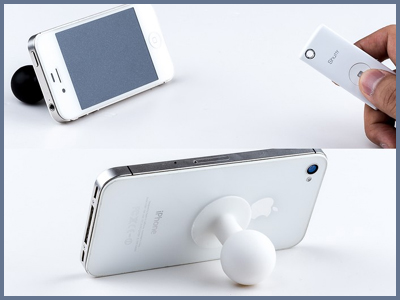
Muku Labs has developed a Bluetooth camera remote called Muku Shuttr for iPhone & Android.
Kickstarter had already funded the Shuttr project that works without downloading or installing 3rd party camera app on devices running iOS 5+ and Android 4.1+.
Muku Labs also claimed that Shuttr would be a 6mm world’s thinnest camera remote and will be available in black or white.
Muku Shuttr World Thinnest Bluetooth Camera Remote for iPhone Android 0 Muku Shuttr: Worlds Thinnest Bluetooth Camera Remote for iPhone & AndroidTechnical Specifications:
Dimension: 61X 26 X 6mm
Weight: 10g
Connectivity: Bluetooth 3.0
Working range: 10 meter
Power Source: Replaceable RC2025 battery
Battery life: Up to 2 years if switched off each time after use
Weight: 10g
Connectivity: Bluetooth 3.0
Working range: 10 meter
Power Source: Replaceable RC2025 battery
Battery life: Up to 2 years if switched off each time after use
If you a photography lover then heads to the Kickstarter and pledge $29 to get one of the first Muku Labs units.
To keep yourself updated with latest Tech News, follow us on Twitter, like our Facebook page, add us to your Google+ circles or subscribe to our Newsletter.


